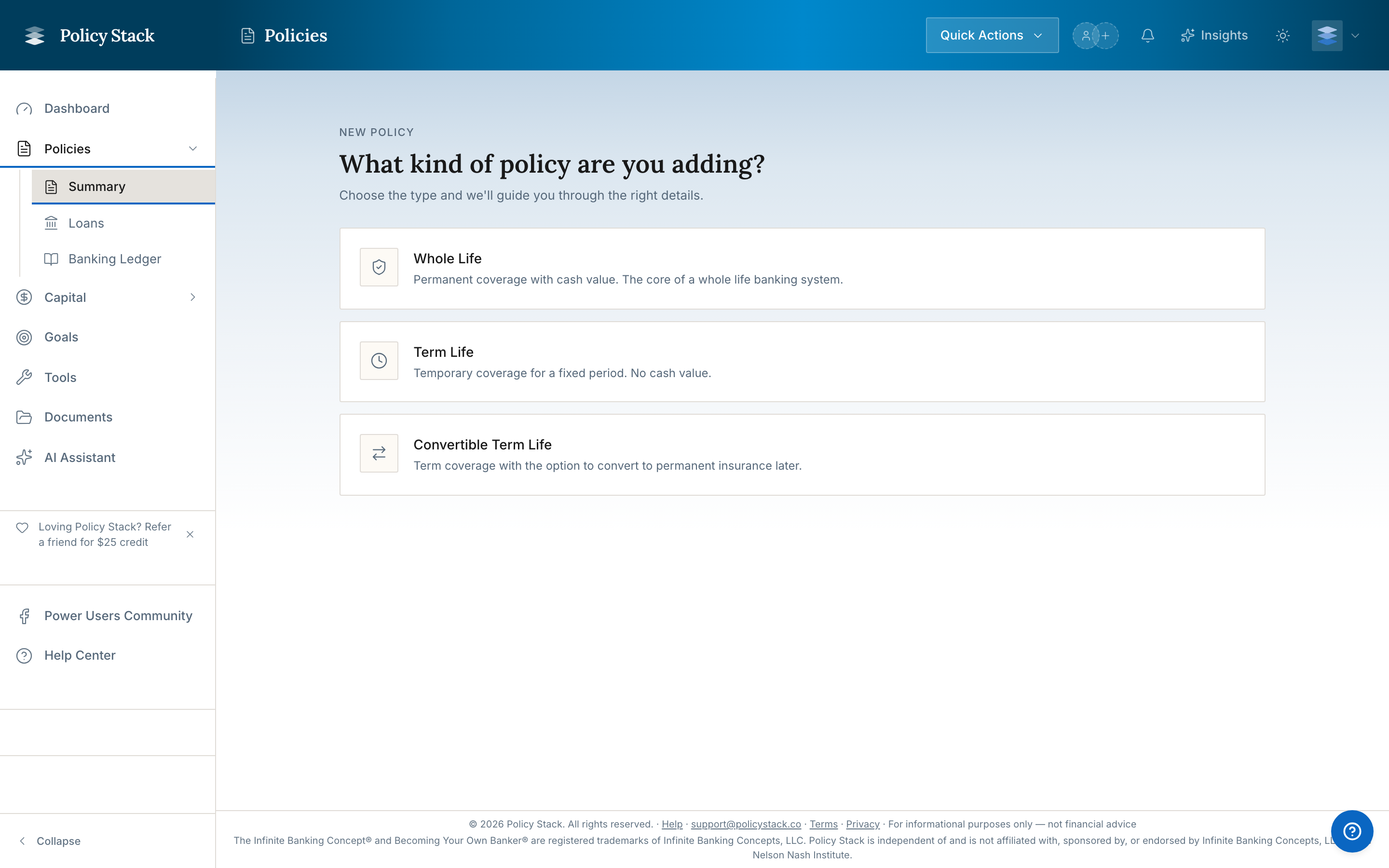
The Add Policy wizard takes you through three steps to record your policy's details, historical data, and current balances. Steps 2 and 3 are optional — you can skip either one and add that data later.
Have your documents ready before you start. Step 1 takes about 5–10 minutes with your policy contract at hand. Steps 2 and 3 go faster if you have your annual statements and carrier portal login available.
Documents to Have Ready
Original Contract or Spec Pages (required for Step 1)
The contract from when your policy was issued. The specification ("spec") pages carry the key details, and uploading the full contract works — extraction finds what it needs. It shows:
- Policy type and carrier
- Initial face amount (base death benefit)
- Premium breakdown: base premium, PUA rider, term rider
- Payment frequency and MEC limit
- Riders and dividend option elected
Annual Statements (optional, for Step 2)
Mailed once a year around your policy anniversary. Each statement shows cash value, death benefit, loan balance, and dividends.
Carrier Portal Access (optional, for Step 3)
If your carrier has an online portal with current policy values, you can log in during Step 3 and take a screenshot to capture today's balances.
If you cannot locate your original contract, your carrier can issue an "in-force illustration" showing your current policy structure. Call the carrier's policyholder services line.
Step 1 — Policy Details
Step 1 captures your policy's identifying information and premium structure from your contract. This step is required.

Policy Type and Carrier
Select Whole Life for a participating whole life banking policy. Then choose your carrier from the dropdown. Selecting a carrier pre-fills the loan interest method based on that carrier's known practice — adjust if your policy contract differs.
Policy Basics
Enter the policy number, an optional nickname, the insured's name, issue date, and anniversary date. These are found on your policy contract's declarations page or on any annual statement header. Policy numbers are encrypted at rest.
Death Benefit
Enter the initial death benefit from the base whole life policy (not including any term rider). If your policy has a term rider, check the box and enter the term rider face amount separately — both appear on your original contract.
Premium Structure
Enter your payment frequency, total scheduled premium, and the split between base premium and PUA. The split comes from your contract's spec pages — for example, if you pay $500 total with $150 base and $350 PUA, set the split to approximately 30/70.
Additional Details (Optional)
Record your dividend option (Paid-Up Additions is most common for whole life banking), loan interest method, riders, and any notes about this policy.
Step 2 — Past History (Optional)
Step 2 builds your policy's historical snapshot record from annual statements. Adding multiple years of history gives Dashboard Banking History and policy Cash Value and Death Benefit charts richer data and makes period comparisons more meaningful.
Two Paths
AI Extraction (Builder Pro) Upload one or more annual statement PDFs. Policy Stack extracts cash values, death benefits, loan balances, and dividends automatically. Each extracted statement opens a review panel where you confirm or edit values before saving.
Manual Entry Enter values directly from each statement. Add as many statement years as you have records.
Total CV and Net CV
Both Step 2 and Step 3 ask for Total CV and Net CV:
- Total CV — the gross accumulated value inside the policy before accounting for any outstanding loans. Sometimes labeled "Total Cash Value" or "Gross Cash Value" on statements.
- Net CV — Total CV minus the outstanding loan balance. Your accessible equity. Sometimes labeled "Net Cash Value" on statements.
You only need to enter one of the two. If you provide Total CV and the Loan Balance, Policy Stack calculates Net CV automatically. If you provide Net CV and the Loan Balance, it calculates Total CV. Enter both if you have both.
Net CV is not the same as traditional "surrender value." Traditional surrender value includes deductions for surrender charges in the early years of a policy. Policy Stack's Net CV is Total CV minus the loan balance — no surrender charges. If your statement shows a "Cash Surrender Value," check whether it reflects an early-surrender deduction (it will be lower than expected). If so, use the "Net Cash Value" or "Total Cash Value" line instead.
Confidence Legend (AI Path)
After AI extraction, each field shows an icon indicating how clearly the value was read from your document:
| Icon | Confidence | What to do | |---|---|---| | ✓ checkmark | High — value is clear | Verify and continue | | — dash | Medium — worth a glance | Review the number | | ⚠ triangle | Low — please verify | Check against the original document |
Low-confidence fields with no value entered require your attention before you can proceed. Either enter the correct value or explicitly accept the extracted one.
Batch Upload
Upload multiple years of annual statements at once. Policy Stack processes them in parallel and presents each statement's review panel in sequence.
Step 3 — Today's Snapshot (Optional)
Step 3 captures your policy's current balances from your carrier portal. This is separate from Step 2 — it is a single current snapshot, not a historical statement.
Why a Separate Step?
Annual statements arrive once a year and may be months old. Your carrier portal shows today's values: current cash value, current loan balance (including any recent capitalized interest), and up-to-date death benefit. This is the freshest data point that drives your dashboard metrics.
Three Paths
Upload Portal Screenshot Log in to your carrier's online portal, navigate to your policy's current values page, and take a screenshot. Upload the image. Policy Stack extracts the balances automatically and shows the same confidence legend as Step 2.
Enter Manually Type today's Total CV (or Net CV), death benefit, loan balance, and dividends directly. You only need one of Total CV or Net CV — the same auto-derivation as Step 2 applies.
Skip for Now Add a current snapshot later from the policy workspace's Analytics tab. The Dashboard will show your most recent annual statement data until you add a current snapshot.
After the Wizard
Once the wizard completes, the policy workspace Overview collects everything you entered — premium structure, riders, and dividend option — in one place you can revisit and edit anytime.
You will also see:
- Your policy appears in the Policy Portfolio with its current status and snapshot freshness
- The Dashboard shows the values from Step 3 (or Step 2 if Step 3 was skipped)
- The Cash Value and Death Benefit charts use each annual statement as a timeline data point
- The policy workspace Analytics tab shows the full recorded history
You can add annual statements and additional snapshots at any time from the policy workspace's Analytics tab.
Common Questions
I cannot find my original contract.
Your carrier can provide an in-force illustration showing your current policy structure. Call the policyholder services line and ask for a "current illustration" or "in-force ledger."
My premium amounts have changed since the policy was issued.
Record the current amounts. Update them at any time from the policy workspace Overview.
I have more than one whole life policy.
Add each policy separately. The wizard handles one policy at a time. Your dashboard aggregates all policies into your total banking system metrics.
The carrier I need is not in the list.
Select the closest match by parent company, or contact support to request your carrier be added.
My statement says "Cash Surrender Value" — which field should I use?
If the number is lower than you'd expect for gross cash value (this happens in the early years of a policy when surrender charges apply), your statement is showing traditional surrender value with deductions. In that case, look for a "Net Cash Value" or "Total Cash Value" line and use that instead. If the number matches Total CV minus your loan balance, enter it as Net CV.
See also: Policy Structure in Overview · Understanding Policy Snapshots · Uploading Annual Statements