Point-in-time records that build your policy history
On this page
Snapshots are the core data records in Policy Stack. Each snapshot captures your policy's values at a specific point in time, creating a history of your banking system.
Whole life only. Snapshots capture cash value, death benefit, and loan balance — all whole life concepts. Term Life and Convertible Term Life policies (chosen as the policy type in Add Policy) don't have snapshots, cash value, or policy loans. Their detail page shows the carrier, term length, expiration date, annual premium, and (for convertible term) the conversion window status — recorded once and updated only when a meaningful change occurs.
What Is a Snapshot?
A snapshot is a point-in-time record of four key values for a single policy:
Total CV — the gross cash value inside the policy before subtracting outstanding loans, as of the snapshot date
Net Cash Value — Total CV minus the loan balance; your accessible equity at that moment
Loan Balance — the outstanding policy loan balance, including capitalized interest, as of the snapshot date
Total Death Benefit — the total death benefit in force as of the snapshot date: the base face amount plus any paid-up additions and riders. Enter the total your statement reports, not the face amount the policy was originally issued with.
Total CV and Net Cash Value are linked by the identity , so the snapshot history table on the policy detail page shows both side by side. Together, these four values paint a complete picture of your policy at that moment.
Total CV = Net Cash Value + Loan Balance
Every value is required to save. Statement Date, Total CV, Loan Balance, and Total Death Benefit must all be entered before Save is available — a snapshot with a blank field records a hole in your history rather than a complete reading. $0 counts as a value: if your policy has no outstanding loan, enter a Loan Balance of $0 to record that explicitly. An empty field is different from a recorded zero.
Why Snapshots Matter
Your banking system changes over time. Cash values grow through dividends, loan balances change through capitalized interest or loan repayments, and death benefits adjust as paid-up additions accumulate. Without regular snapshots, Policy Stack can only show you the last values you recorded — which may be months or even a year old. Your dashboard, projections, and analytics all depend on snapshot data to be accurate.
Snapshots matter because they:
Keep the Dashboard current — the Net Cash Value, Death Benefit, and Loan Balance cards and Banking History draw from your snapshots. Older snapshots mean the displayed position may be older than the carrier's current values.
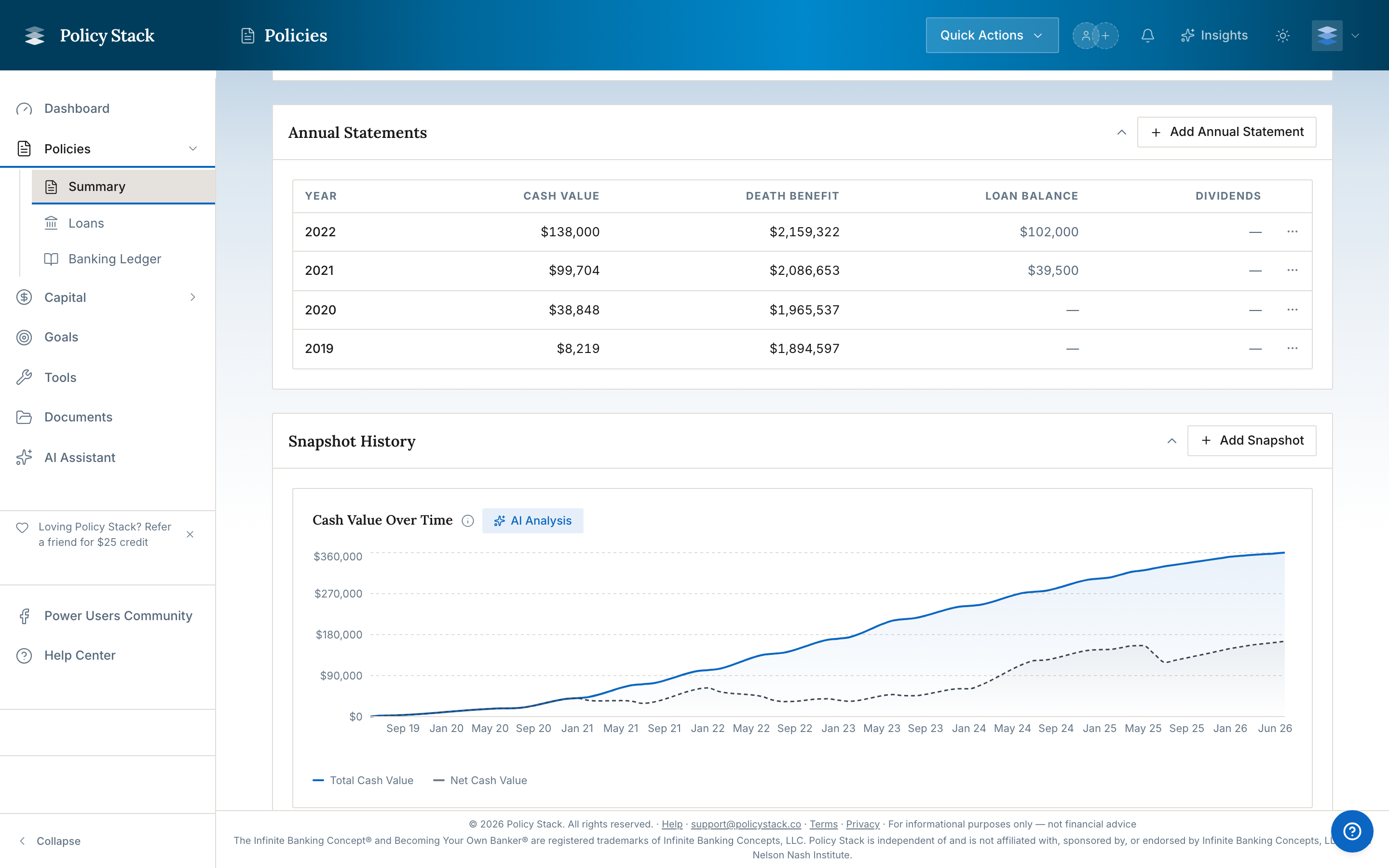
Build your history — each snapshot adds a data point to your timeline. Over months and years, this history shows you how your cash value has grown, how loan balances have changed, and how your Net Cash Value has evolved.
Compare carrier position with tracked activity — a snapshot records the carrier-reported loan balance for policy position and charts without silently overwriting existing tracked loans. If the difference looks like unrecorded activity, Policy Stack can offer a follow-up to record it once. See Snapshot Loan-Balance Review.
Update your goals — if you have Capital goals linked to policies, each snapshot automatically updates goal progress.
Feed policy analytics — snapshots add points to the policy workspace Analytics charts and aggregate Dashboard Banking History.
When to Record Snapshots
The best time to record a snapshot is whenever you have fresh, carrier-reported values. Here are the most common opportunities:
Annual Statement (Minimum — Once Per Year)
Every carrier issues an annual statement around your policy anniversary date. This is the single most important snapshot you can take each year. It includes verified cash value, death benefit, dividend information, and loan balances directly from the carrier.
At minimum, record one snapshot per policy per year from your annual statement. This is the baseline that keeps your data meaningful.
Quarterly Check-Ins (Recommended)
If your carrier provides an online portal with current values, recording quarterly snapshots gives you a much richer picture of your system's trajectory. Quarterly snapshots help you:
See how cash value grows between annual statements
Track the effect of capitalized interest on loan balances
Catch discrepancies earlier rather than waiting a full year
Get smoother, more detailed charts in Dashboard Banking History and policy Analytics
After Significant Capital Events
Record a snapshot whenever something meaningful changes in your policy:
After taking a policy loan — capture the updated loan balance
After a large loan repayment — verify the carrier applied the payment correctly
After a dividend credit — record the updated cash value reflecting the dividend
After changing your PUA contribution — capture any changes to your cash value growth rate
When Your Dashboard Tells You To
The Data Freshness section in your dashboard sidebar actively monitors how current your snapshots are. Policies with snapshots older than 30 days are flagged with a visual indicator, and you can update them directly from the dashboard with one click.
Set a quarterly reminder to log in to your carrier portal and record snapshots. Even 4 snapshots per year — instead of just 1 — gives you dramatically more insight into your system's trajectory.
Editing and Deleting Snapshots
If you entered incorrect values, you can fix them:
Edit a snapshot — update Total CV, Net Cash Value, Loan Balance, or Death Benefit. The snapshot date cannot be changed. Edit fields show currency formatting ($ prefix and thousands separators) so the numbers match what you see on your statement. The edited record updates policy history, the current policy position when it is the newest snapshot, and linked goal progress; it does not silently rewrite an existing tracked loan.
Delete a snapshot — remove a snapshot entirely. Your policy's displayed values will revert to the previous snapshot, or clear if no other snapshots exist. If the snapshot set a loan's starting balance, the starting balance moves to the previous snapshot, or to $0.
Only one snapshot is allowed per date per policy. If the date you pick in Add Snapshot already has a snapshot, the dialog shows an inline collision warning and a Replace existing snapshot toggle — turning it on switches the save into an update of that existing record instead of erroring or duplicating. Picking a clean date hides the banner.
Editing an Older Snapshot
Editing an older snapshot — for example, fixing a typo on last quarter's record — updates that historical point but does not replace the newest policy position or rewrite a tracked loan balance.
To correct a tracked loan, edit Current Balance on the loan detail page or correct the applicable draw or repayment record. Snapshot values remain the carrier-reported policy history.
Recording Snapshots from Policy Setup
After you add a policy, its setup offers Current snapshot (today's values, from a portal screenshot or entered manually) and Annual statements (one per policy year). The newest snapshot drives your dashboard.
Total CV and Net Cash Value
Snapshot forms show two cash value fields:
Total CV — the gross accumulated value inside the policy before accounting for outstanding loans. Sometimes labeled "Total Cash Value" or "Gross Cash Value" on carrier documents.
Net Cash Value — Total CV minus the loan balance. Your accessible equity. Sometimes labeled "Net Cash Value" on statements.
The relationship between the two is always Total CV = Net Cash Value + Loan Balance. Carriers vary in which one they print first — some statements lead with Total CV, some lead with Net Cash Value — so Policy Stack shows both. The Snapshots history table on the policy detail page displays four columns in this order: Total CV · Net Cash Value · Loan Balance · Death Benefit.
You only need to enter one of the two cash value fields. If you provide Total CV and the Loan Balance, Policy Stack derives Net Cash Value automatically. If you provide Net Cash Value and the Loan Balance, it derives Total CV.
Net Cash Value is not the same as traditional "surrender value." Traditional surrender value includes deductions for early-surrender charges. Policy Stack's Net Cash Value is simply Total CV minus the loan balance — no surrender charges involved. If your statement shows a "Cash Surrender Value" that looks lower than expected, check whether it reflects surrender charges rather than loans.
AI Extraction: Files In, Four Fields Out
The AI path of Add Snapshot accepts one or more files — drop them in or use the file picker. Staged files appear in a removable list with prev/next arrows so you can flip through a multi-page statement before extracting.
Extraction only runs when you click Extract values, so nothing leaves your device until you're happy with the file set. Once extraction returns, the dialog shows the four required fields — Total CV, Net Cash Value, Loan Balance, Death Benefit — side by side with the file viewer. Save stays disabled until each field is filled in ($0 is fine for Total CV and Loan Balance; Death Benefit must be greater than zero).
Each extracted field shows a confidence percentage indicating how clearly the value was read:
Confidence
Meaning
What to do
90% and up
Read clearly
Verify and proceed
70–89% · "Review"
Read, but worth a second look
Review the number before saving
Below 70% · "Low — verify"
Needs your attention
Check against the original document
Fields below 70% that have no value entered must be addressed — either enter the correct value or explicitly accept the extracted one — before you can proceed.
Snapshot Data Sources
Each snapshot is labeled with how the values were recorded:
Manual — you entered the values directly from a carrier document or portal
Extraction — values were extracted from an uploaded annual statement or portal screenshot using document extraction (Builder Pro)
Policy Stack does not connect to carrier systems automatically for most carriers. The values you record are the source of truth for your dashboard and analytics.
Multiple Policies
If you have multiple policies, each policy has its own snapshot history. The dashboard aggregates across all policies to show your total system position. The Data Freshness sidebar tracks each policy independently, so you can see at a glance which policies need updating.
Policy Stack is a tracking and visualization tool. It does not provide financial advice, recommendations, or opinions on what you should do with your banking system.
Policy Stack is independent of and is not affiliated with, sponsored by, or endorsed by Infinite Banking Concepts, LLC or the Nelson Nash Institute.