The Income Stacker visualizes the cash flow generated by your promissory notes receivable. If you deploy capital through private lending, the tool shows how payment streams from multiple notes layer together over time.
What the Income Stacker Does
When you deploy capital from your banking system into promissory notes, each note produces a predictable payment stream — principal plus interest — returning to you each month. The Income Stacker aggregates all of those streams into a single visual that shows your total incoming cash flow now and over the coming months and years.
How Promissory Notes Work
A promissory note is a written agreement where a borrower agrees to repay a specific amount to you (the note holder) over a defined term at a stated interest rate. Unlike equity investments, notes produce scheduled, predictable payments.
Each monthly payment includes two components:
- Interest — income you earn on the outstanding balance
- Principal — return of the original capital you lent
Early payments are interest-heavy. As the balance amortizes, each successive payment returns more principal and less interest. When the note matures, you have received back the full principal plus all interest — and you have available capital ready to deploy again.
The Income Stacker models this payment schedule for every note and stacks them together to show your aggregate cash flow.
Why "Stacked"
Each note is represented as a colored band. Multiple notes stack vertically on the same monthly timeline to show the combined total. When one note matures and its band disappears, you can immediately see the gap it leaves — and whether other notes fill it or whether there is a capital deployment gap to plan for.
This is particularly useful when notes have staggered maturity dates. A well-managed note portfolio shows notes maturing and being redeployed continuously, maintaining a consistent income stream.
How to Use the Income Stacker
- Navigate to Tools — click Tools in the sidebar, then select Income Stacker
- Review the loaded notes — the tool automatically pulls all active promissory notes from your Deployments section
- View the stacked chart — each note appears as a band, layered to show combined monthly income
- Hover over a month — see the per-note breakdown: how much each note contributes that month, and the split between principal and interest
- Scroll the timeline — move through future months to see how income evolves as notes amortize and mature
- Check maturity gaps — identify months where notes complete and income may drop, so you can plan redeployment timing
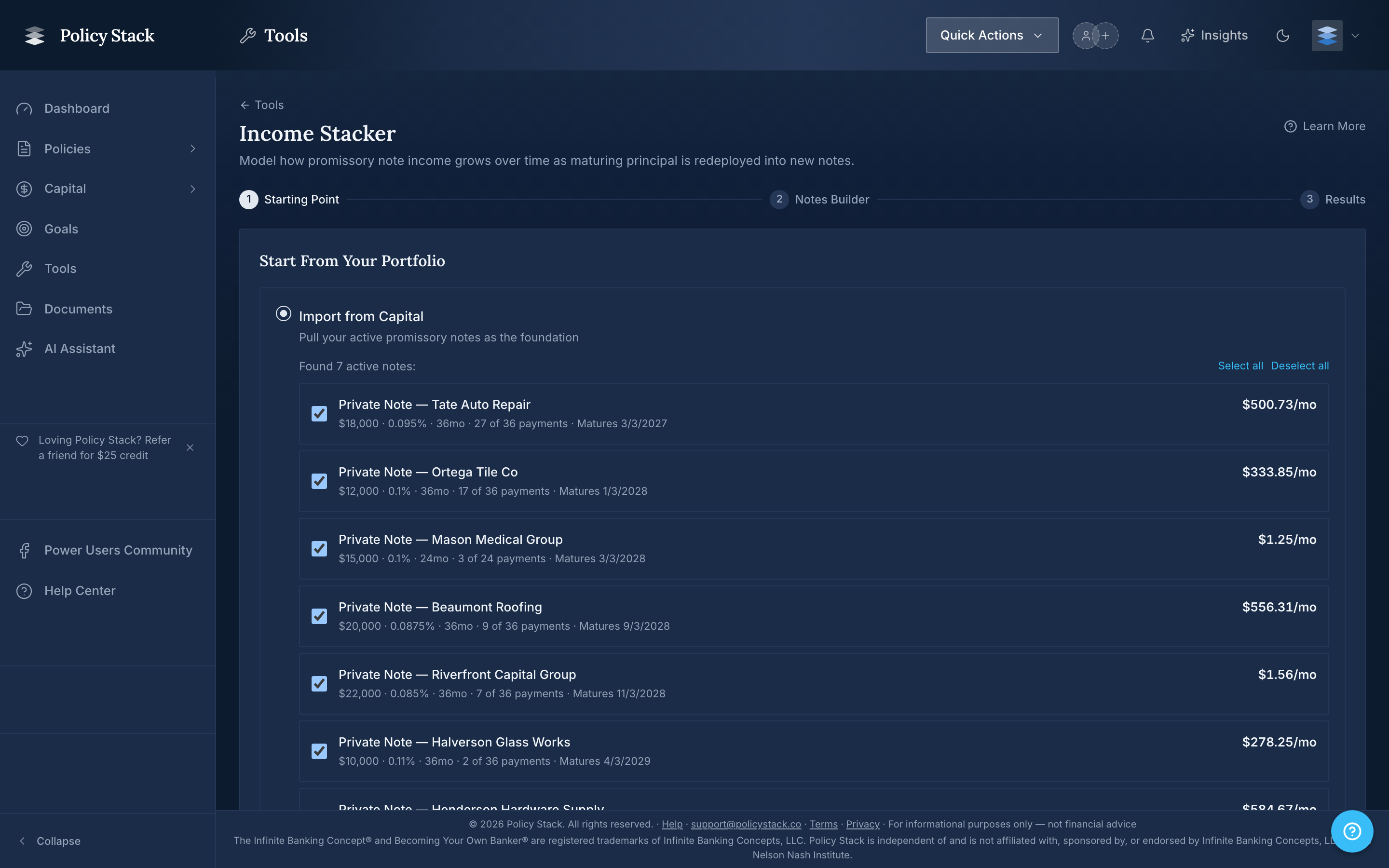
The Income Stacker reads from your recorded promissory notes. To add notes or update terms, navigate to Deployments → Notes Receivable and manage them there. Changes appear automatically in the Income Stacker.
Reading the Results
Stacked chart: Each note is a colored band. The height of the full stack at any month is your total income for that month. As notes amortize, each band narrows (less interest, more principal return). When a note matures, its band ends.
Per-note panel: Below the main chart, each note is listed individually with:
- Monthly payment amount
- Current outstanding balance
- Interest rate
- Expected maturity date
- Cumulative interest earned to date
Income summary: Total monthly income, annual income run rate, and total income expected across all active notes through their respective maturities.
Planning Redeployment
The Income Stacker is a planning tool, not just a reporting tool. By looking ahead at when notes mature, you can see when returned capital will be available for redeployment — and whether your repayment schedule aligns with those dates.
If you have notes maturing in the same quarter, that returned capital can fund repayment on your banking system loans before being redeployed. The Income Stacker helps you see these timing opportunities at a glance.
Saving a Scenario
Saving is available on Notes Builder and Results — a save from either records the whole workspace, including the notes imported from your deployments, every modeled note, the stacking engine configuration, and the projection horizon.
- Save As creates a new named scenario.
- Save updates the scenario you currently have open, in place. It appears once a scenario is loaded; before that, a single Save Scenario button names and creates the first one.
Saved scenarios are listed on the tool's entry screen, where you can open or delete them. Loading is offered there only, because loading replaces whatever is currently entered.