Policy Stack can create a private live-feed URL for the obligations shown in Upcoming. Add the URL once to Google Calendar or Apple Calendar and the calendar app will periodically check it for updates. Entries are one-day all-day events. Their titles lead with the policy nickname, asset name, or note name, followed by the amount and activity type, such as Natalie NYL — $600 Premium or 123 Main St. Note — $500 Income.
This is a one-way calendar feed. It displays scheduled Policy Stack activity in your calendar; editing an event in the calendar does not change a Policy Stack record.
Copy Your Policy Stack URL
- Open Home in Policy Stack.
- In Upcoming, select Subscribe to calendar.
- Select Copy URL.
- Keep the subscription window open while you add the URL to your calendar app.
Treat the subscription URL as private. Anyone who has it can read the events in that feed. Event titles include the record name and scheduled amount, so Google or Apple receives those details and a device may show them in calendar notifications or on its lock screen. Do not publish the URL or select a setting that makes the calendar publicly accessible.
Add It to Google Calendar
Google requires a computer web browser for this setup. The Google Calendar mobile app does not offer the From URL flow.
- On a computer, open Google Calendar.
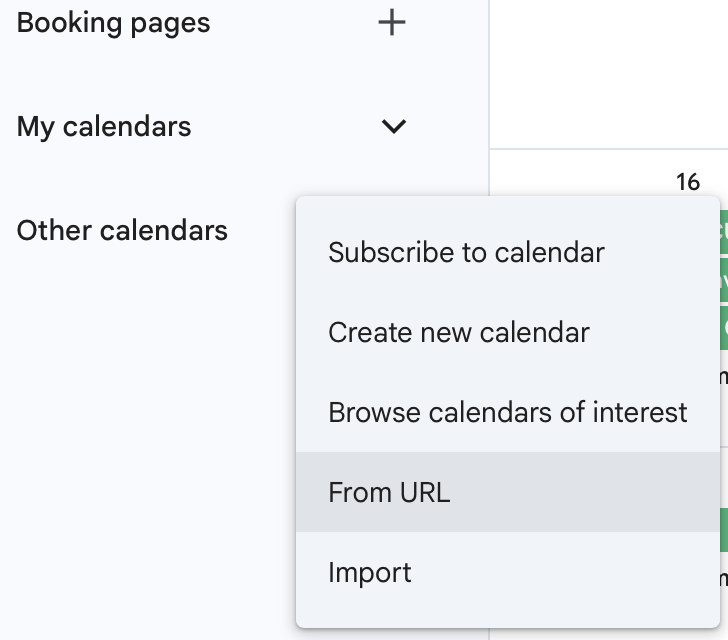
- In the left sidebar, find Other calendars and select the + button.
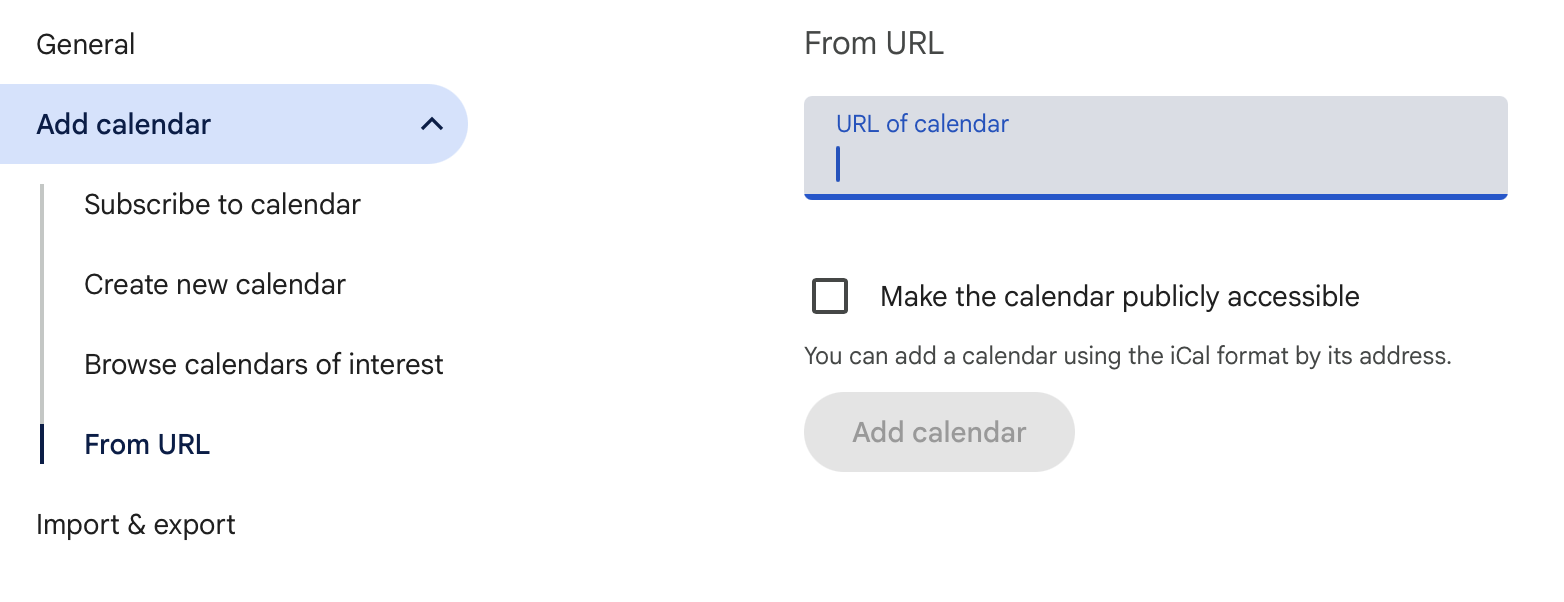
- Choose From URL. Do not choose Subscribe to calendar; that option is for another Google user's calendar.
- Paste the Policy Stack URL into URL of calendar.
- Leave Make the calendar publicly accessible unchecked.
- Select Add calendar. The new calendar appears under Other calendars.


View Google Calendar's official instructions
Add It to Apple Calendar
The Apple Calendar option in the Policy Stack subscription window can open the feed directly in Calendar. If you copied the URL instead, use one of these paths.
iPhone or iPad
- Open Calendar, then select Calendars.
- Select Add Calendar, then Add Subscription Calendar.
- Paste the Policy Stack URL and continue with Find or Subscribe, depending on your operating-system version.
- Give the calendar a name, choose iCloud as its account, and finish the setup.
Mac
- In Calendar, choose File → New Calendar Subscription.
- Paste the Policy Stack URL and select Subscribe.
- Choose a name and color, set Location to iCloud, and select OK.
View Apple's official iCloud calendar-subscription instructions
If the URL Is Shared
Open Settings → Schedule Feed Sync in Policy Stack and select Regenerate URL. The old URL stops updating, so add the new URL to each calendar app you still use.